01 Must Read
Important Tips Before Editing
If you are only changing values which are highlighted in blue in next section (which are more than enough to edit every personal detail in website), you do not need to know anything about JSON, just replace text inside of " ", but make sure to not delete or change the " " quotes or commas. Only edit the text between the quotes.
In case if you feel overwhelmed by readings, follow our YouTube tutorial (link will be added soon), or send us a message through official website — not working now but it will be up soon.
If you are not familiar with JSON, it is recommended to read this small easy-to-understand guide about JSON: JSON Guide
Always Validate Your JSON
Before saving, always check that your JSON is valid. Use JSONLint or another tool to validate.
Step 1: Go to jsonlint.com
Step 2: Copy your full JSON block and paste it into the code area.
Step 3: Click "Validate".
If valid — green:
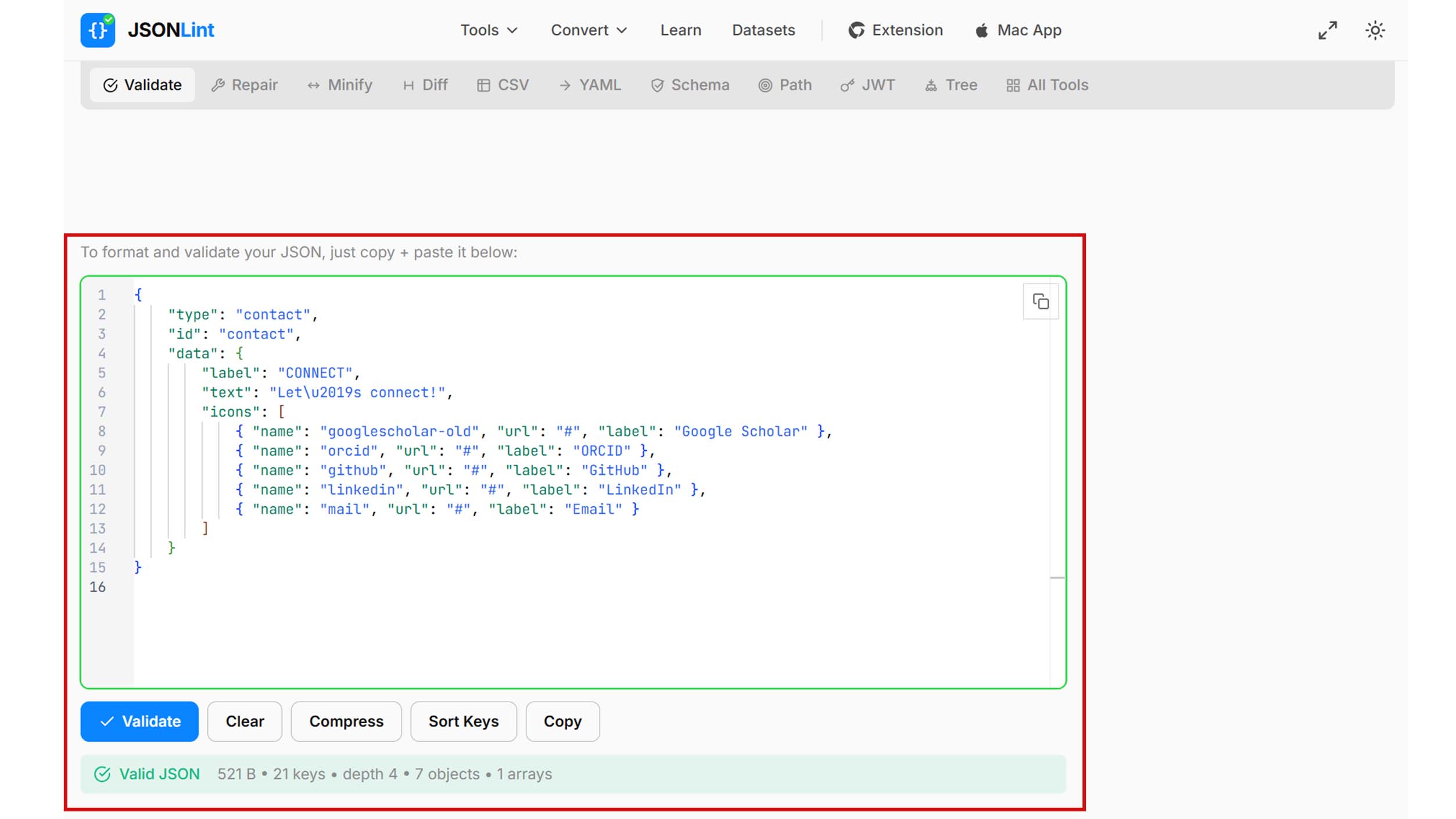
Your JSON is correct. You can use it without any problem.
If invalid — red:
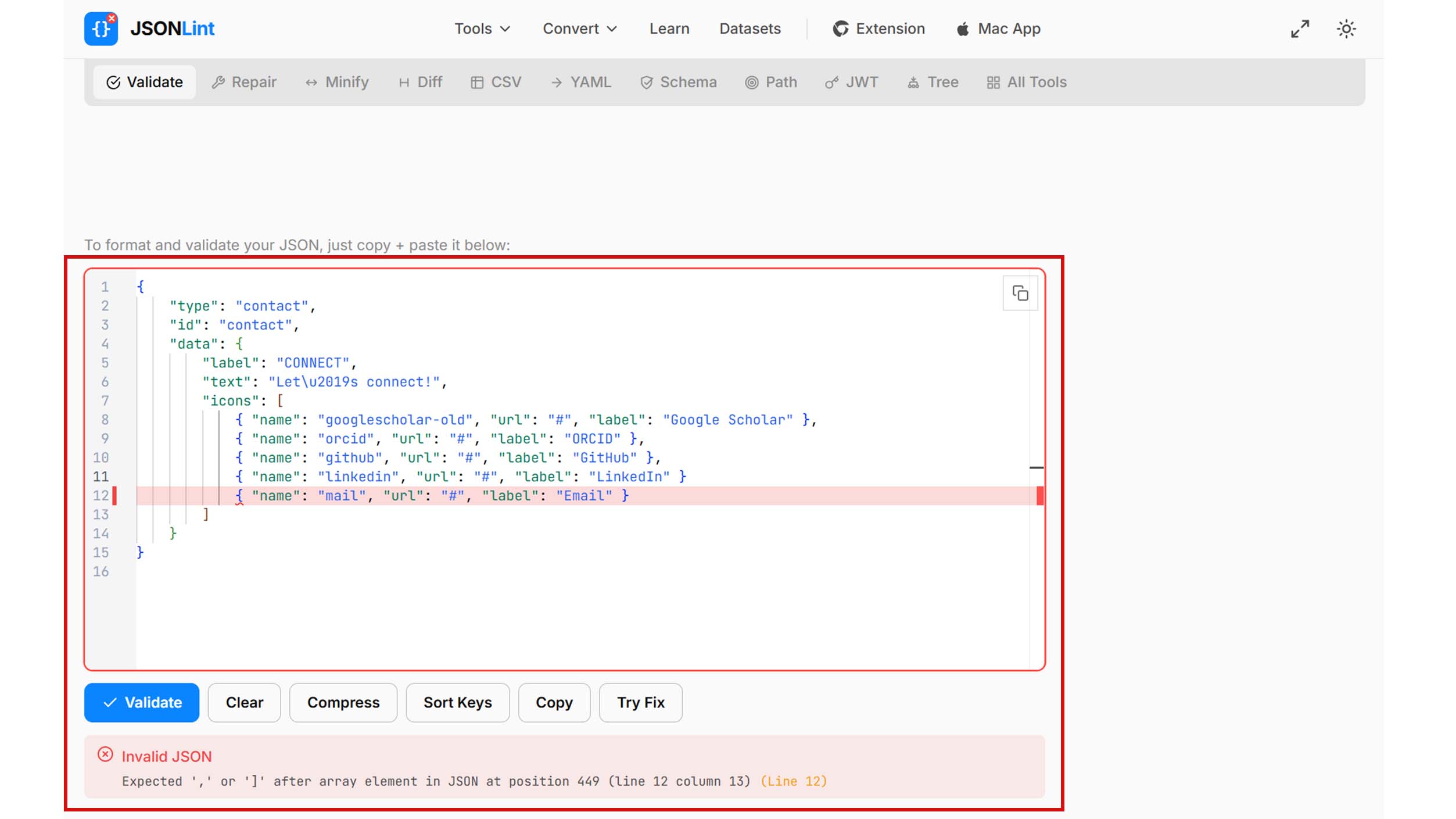
There are errors that need to be fixed.
How to Fix Invalid JSON
You have two options:
Option 1 — Fix it manually: Follow our JSON Guide to understand JSON and fix it yourself.
Option 2 — Use JSONLint Repair (recommended for simple fixes): Go to jsonlint.com/json-repair, paste your JSON, and let it automatically fix common errors.
Option 3 — Use AI (recommended if short on time): Use an AI tool like Gemini, ChatGPT, or Claude. Give them this prompt and include your JSON block:
Analyze the provided invalid JSON. Correct any syntax errors (such as missing or trailing commas, unclosed brackets or braces, or unescaped quotes) to make it valid JSON. You must preserve all original keys, values, and data types exactly as they are. Return only the corrected JSON block. Do not include any explanations, introductory text, or concluding text.Make sure to validate the result again before using — AI can make mistakes sometimes.